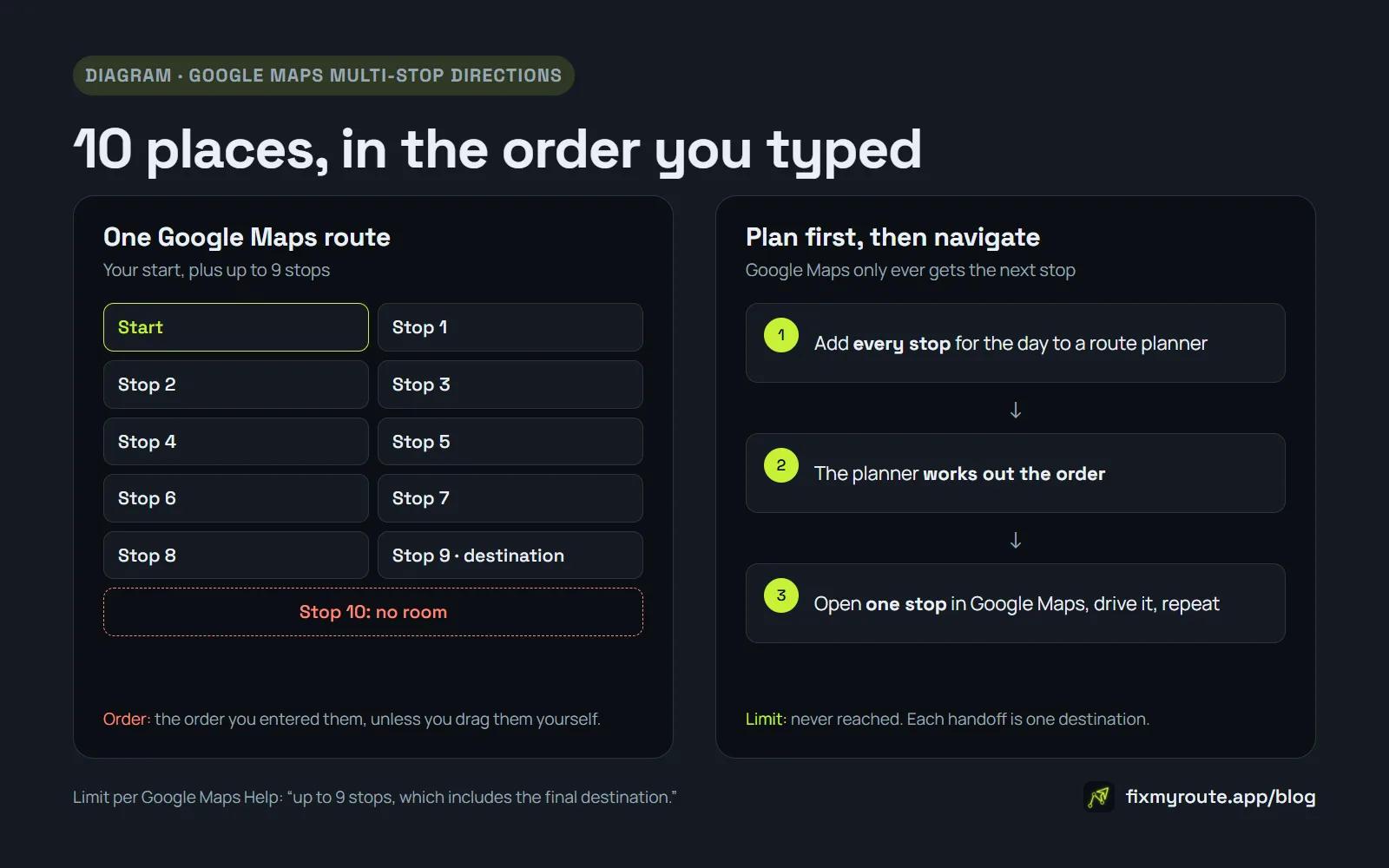
Google's help page puts it plainly: "You can add up to 9 stops, which includes the final destination." Add your starting point and that's 10 places in one route, and that's as far as Google Maps goes. If you run 20 or 30 stops a day, you hit it on every route.
The limit is only half the problem. Even inside those 10 places, Google Maps drives your stops in the order you typed them. It won't work out a better one.
Below is what the limit actually is, the three workarounds drivers use, what each one costs you, and the approach that makes the limit stop mattering.
The actual limit: 9 stops plus your start
People search for "more than 10 stops", and 10 is right if you count where you start. Google counts it differently: up to 9 stops, the last of which is your destination. The Android help page and the desktop one give the same figure.
Multi-stop directions work for every travel mode except public transit and flights, so driving is covered. Google's help doesn't mention any way to raise the limit.
The bigger problem: it won't choose the order
Google Maps goes to your stops in the sequence you entered them. Neither help page mentions reordering them for you. The only reordering it describes is manual: hold the reorder handle on a stop and drag it.
So if your list came off the manifest sorted by order number or customer name, that's the route you drive. With four stops you can see the right order at a glance. With nine spread across a neighbourhood, dragging them into shape on a phone screen is guesswork, and nothing tells you whether the guess was any good.
That's why getting more stops in only fixes part of it. Thirty stops in a bad order is still a bad day.
Three workarounds, and what each one costs
1. Split the day into legs of nine
Enter the first nine stops and drive them. Then build a new route from where you're standing for the next nine. It works, and it needs nothing but Google Maps.
The cost is that you decide where each leg ends. If stop 9 is at the far end of your area and stop 10 is back near where you started, you'll drive that gap twice. You still have to order the stops inside each leg yourself, too. The ordering problem hasn't gone anywhere. It's just in smaller pieces.
2. Put the pins on Google My Maps
My Maps is Google's tool for building custom maps. You can drop a pin for every address and see the whole day at once, which makes the clusters easy to spot.
But My Maps doesn't put those pins in order. Nothing in its help describes turning them into a driving sequence, so you're still doing the routing in your head, now with a nicer map in front of you. It's also a setup job, not something you'd redo when a stop gets added halfway through the shift.
3. Plan the order elsewhere, navigate one stop at a time
The third option changes what you ask Google Maps to do. A route planner works out the visiting order for the whole list, then opens Google Maps with just the next stop. You drive it, mark it done, and open the next one.
Google Maps never sees more than one destination, so the limit never comes up. You keep it for the part it's good at, the turn-by-turn directions, and let something else decide the order. What it costs you is one more app, and a tap between stops.
What Fix My Route does
Fix My Route is built around that third option. You add stops by typing them, pasting a list, uploading a CSV, or taking a photo of a manifest or a screenshot. One tap on Optimize works out the fastest visiting order for all of them.
For the driving itself, the app hands off one stop at a time to Google Maps, Apple Maps or Waze, whichever you've picked. Each handoff is a single destination, so Google's stop limit doesn't apply to your route. If you skip a stop, the app reorders the rest instead of leaving you with the old plan.
The free plan allows up to 12 stops per route, a couple more than one Google Maps route can hold. Pro removes the stop cap.
What this post doesn't claim
We haven't measured how much time a better order saves on any particular route, so there's no minutes-saved figure here. It depends on how spread out your stops are and how bad the original order was.
Google's help pages also don't give a stop limit for My Maps directions, so we haven't quoted one.
Final thoughts
Nine stops plus a start is the ceiling in Google Maps, and nothing in Google's help raises it. Splitting the day into legs gets you past it. Deciding the order is the part that eats time, and Google Maps leaves that to you.
If you run more than a handful of stops, plan the order first and let Google Maps handle one stop at a time. It only needs to know where the next door is.
Fix My Route Team
We build route-optimization software for delivery drivers and couriers, and write about the planning and engineering problems that come up running real multi-stop days.
Keep reading
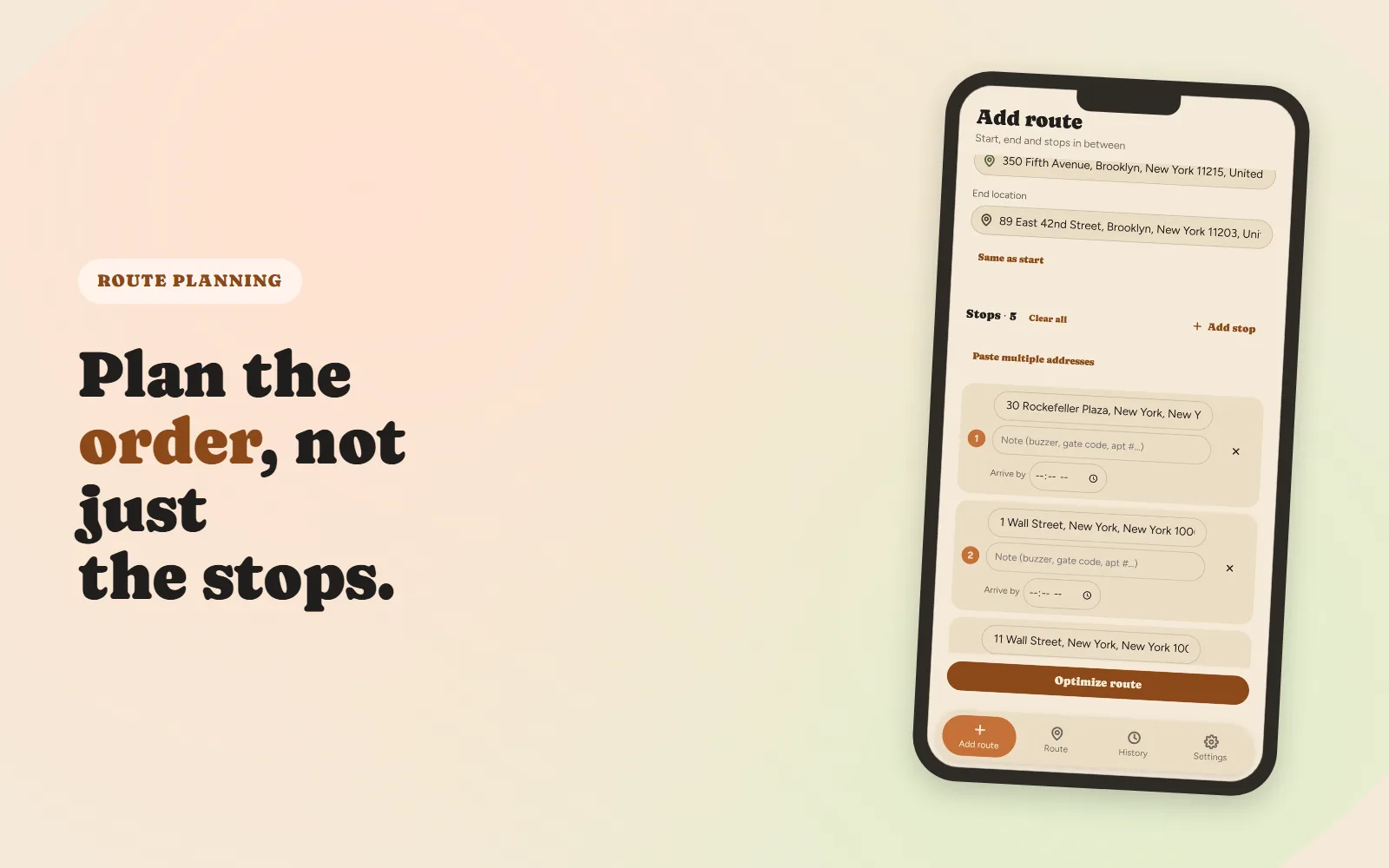
How to Plan a Multi-Stop Delivery Route (Without Losing Half Your Day)
A practical way to turn a messy address list into an order you can actually drive.
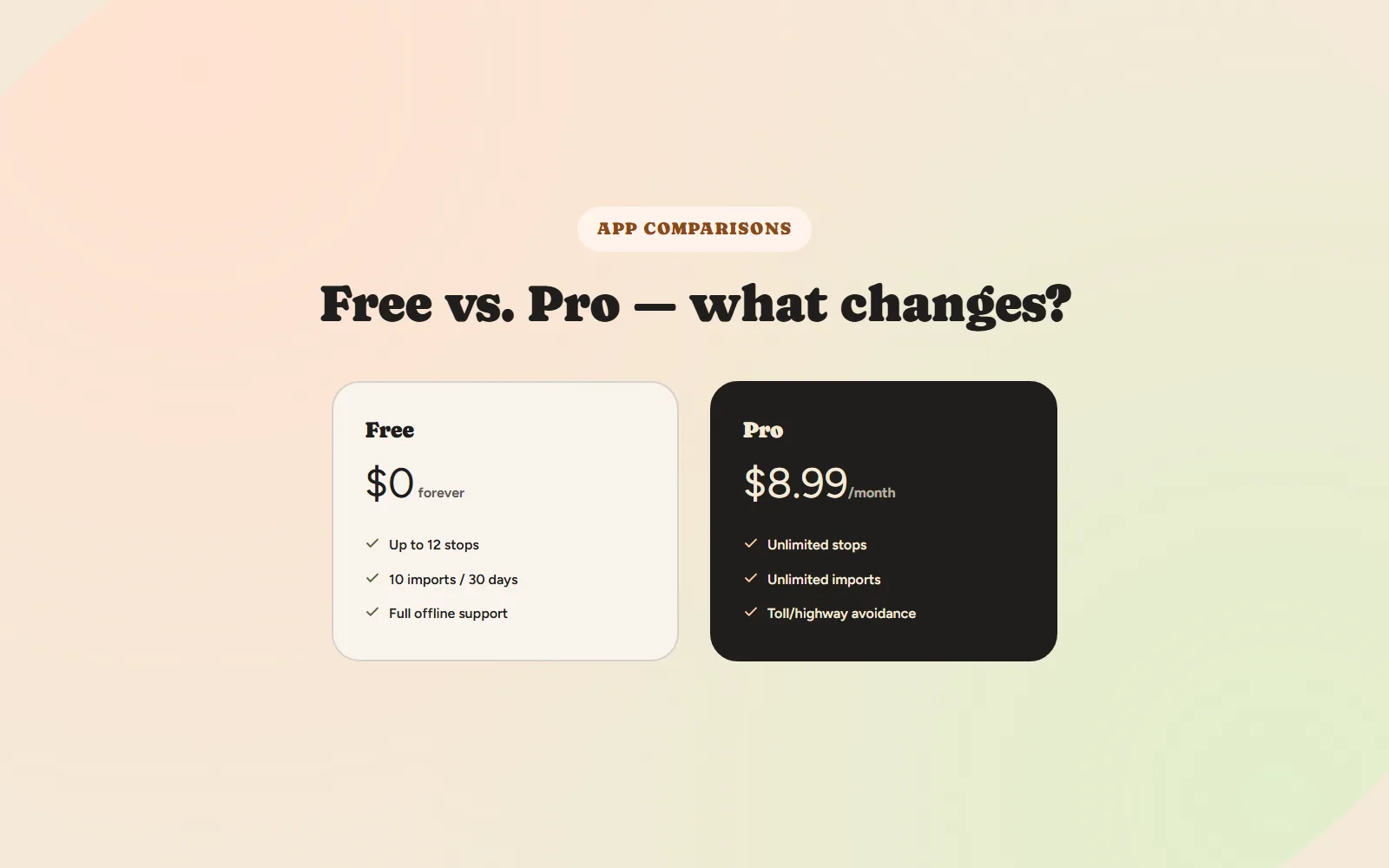
Free vs. Paid Route Planner Apps: What Actually Changes at ~$9/Month
What typically stays free, what gets capped, and how to decide if paying is worth it.