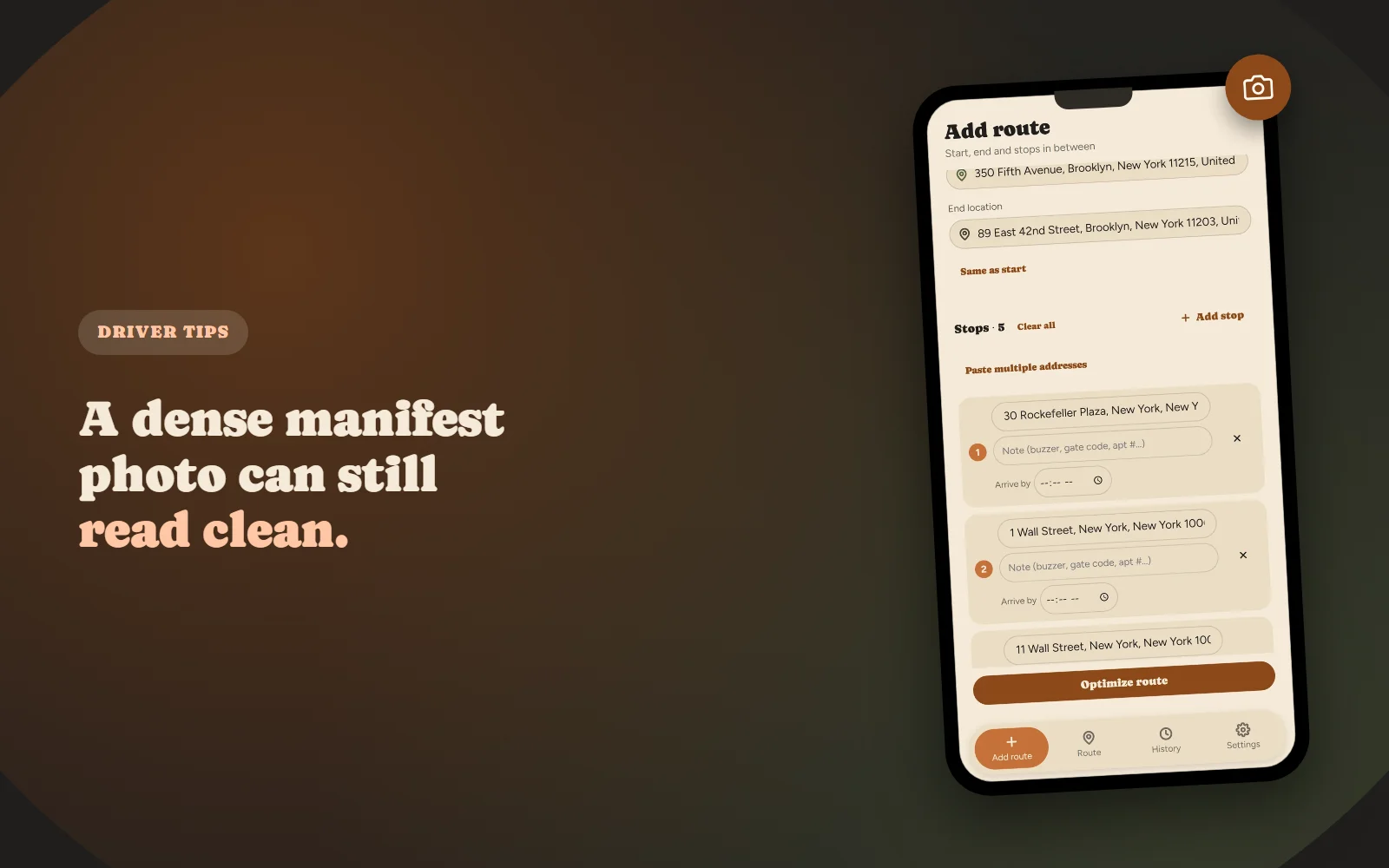
Snap a photo of a delivery manifest, tap import, and the app finds twelve stops out of fifteen, or finds none at all, with a message that just says no addresses were found. That's not one failure. It's usually one of three specific things going wrong: the photo's file format, how dense the page actually is, or whether the app tells you what happened.
Here's what those three problems actually are, what changed to fix them, and how to get a clean read on the first try.
Why a Manifest Photo Can Still Come Back Light on Addresses
Reading addresses off a photo isn't a single step. The photo has to arrive in a format the reading service can actually open, get scanned for text, and have that text matched against real addresses. Any one of those steps can fail quietly, and the only thing a driver sees is a generic message saying no addresses were found, with no indication of which step actually broke.
Three specific problems in that chain only showed up once real delivery photos, not test images, were run through it, right after the first real store builds went out.
The File Format Problem
iPhones save photos as HEIC by default, not JPEG. The service that reads text out of the photo couldn't open a HEIC file at all, so a photo taken straight from an iPhone's camera roll could fail before any text-reading even started. It failed with the exact same message as every other kind of failure, which made it look like a much bigger problem than it was.
The Dense Manifest Problem
A real manifest isn't a clean printed list. It's usually a three-column layout with a name and a phone number packed in right next to every address, sometimes fifteen or twenty stops deep. The reading effort had been tuned against simpler, cleaner images, so on an actually busy manifest it came back reporting zero addresses found, even though every address on the page was perfectly legible.
The Same Message for Every Failure
On top of both of those, the app showed identical wording no matter what had actually gone wrong: a HEIC file, a packed manifest, or a genuinely blank photo. There was no way to tell which one you'd hit, which made this nearly impossible to diagnose from the outside without someone pulling the photo and testing it directly.
All three showed up stacked together in the same early report: a photo taken on an iPhone, of a busy multi-column manifest, that came back with the same unhelpful message it would have shown for a blank page. Untangling which of the three was actually responsible took direct investigation — not something a driver mid-shift should ever have to do themselves.
What Actually Fixed It
Fixing this meant treating it as three separate problems instead of one vague import failure.
Convert to JPEG Before Reading, Not After
Photo picks now get converted to JPEG automatically, regardless of the format the original file came in as. The reading service never sees a HEIC file anymore, so that entire failure mode is closed before it can happen.
More Reading Effort for Dense Images
The effort used to scan a photo for addresses was raised specifically to handle dense, real-world manifests: the three-column layout with names and phone numbers crowding every line, not a clean typed list. That change is the difference between an import finding zero stops on a busy manifest and finding all of them.
A Real Error Instead of a Generic One
The app now shows what actually went wrong instead of one catch-all message. That matters most in the rare case an import still doesn't work: a specific error is something you can act on — retake the photo, try a different angle, or fall back to typing the addresses — instead of just trying the same thing again and hoping.
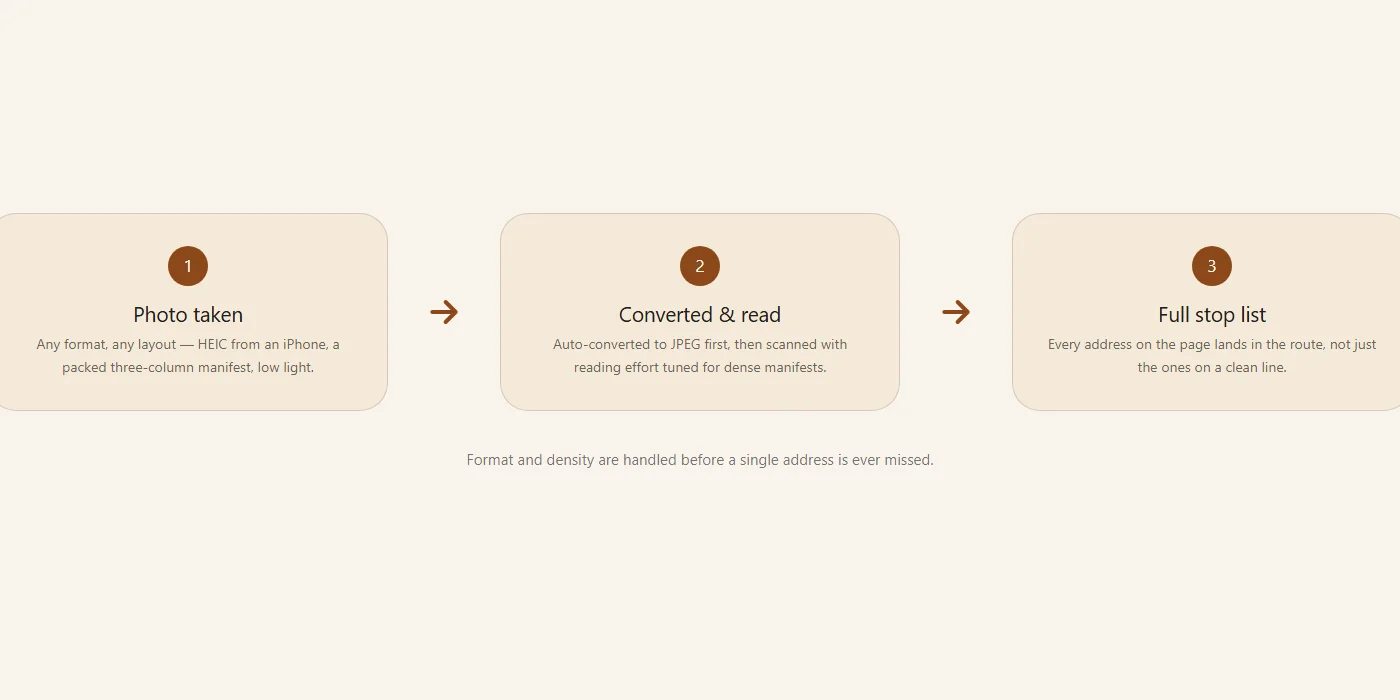
Together, those three changes mean a photo import failure today almost always comes down to something about the photo itself, not a fixable gap in how the app reads it.
How to Get a Clean Read on the First Try
Even with all of that fixed, a photo is still a photo, and how you take it still matters. A few things make the biggest difference on a real manifest:
- Fill the frame with the address column. Don't shoot the whole clipboard from across the truck if you can get closer; more pixels per line of text means a more reliable read.
- Shoot it flat and straight-on. An angled or curled page distorts the text just enough to make a dense, multi-column layout harder to separate correctly.
- Watch for glare and shadows. A phone flash bouncing off a laminated manifest, or your own shadow falling across the address column, can wash out exactly the text that matters.
- Skip the flash if you can. Under warehouse fluorescents, a flash tends to create a bright hotspot right where the text is; natural or ambient light plus a steady hand usually reads cleaner.
- Get the whole page in one shot. Splitting a long manifest into partial photos means matching stops back together yourself afterward; it's usually faster to back up a step and fit the whole page in frame.
If a Photo Still Won't Cooperate
Photo import is one of several ways to add stops, not the only one. You can also type addresses directly, paste a whole list at once, or upload a CSV. If a manifest is genuinely rough — handwritten, torn, or lit in a way you can't fix by moving — pasting the text is often faster than fighting a bad photo through multiple retries.
Whichever way the stops get added, the same address checks run afterward: a stop that geocodes somewhere implausible still gets flagged directly on that stop before you're on the road, not after. Getting the addresses in cleanly is only half the job — catching a bad one before it costs you a detour is the other half.
It's also worth remembering that photo imports aren't unlimited on the free plan; the allowance resets monthly. A handful of retries on a photo that was never going to read cleanly is a worse use of that allowance than switching to typing or pasting after the first clean attempt doesn't work.
Final Thoughts
None of these three issues showed up until an actual manifest photo went through the pipeline. A test image doesn't have the file format, page density, or lighting of a real one taken mid-shift. If an import is coming back light on addresses, it's almost always one of these causes, and each one now has a specific fix behind it instead of a generic error and a shrug.
A flat, well-lit, straight-on photo of the address column is still the fastest way to load a route. Done right, it replaces typing out every stop by hand with a single photo.

Fix My Route Team
We build route-optimization software for delivery drivers and couriers, and write about the planning and engineering problems that come up running real multi-stop days.
Keep reading
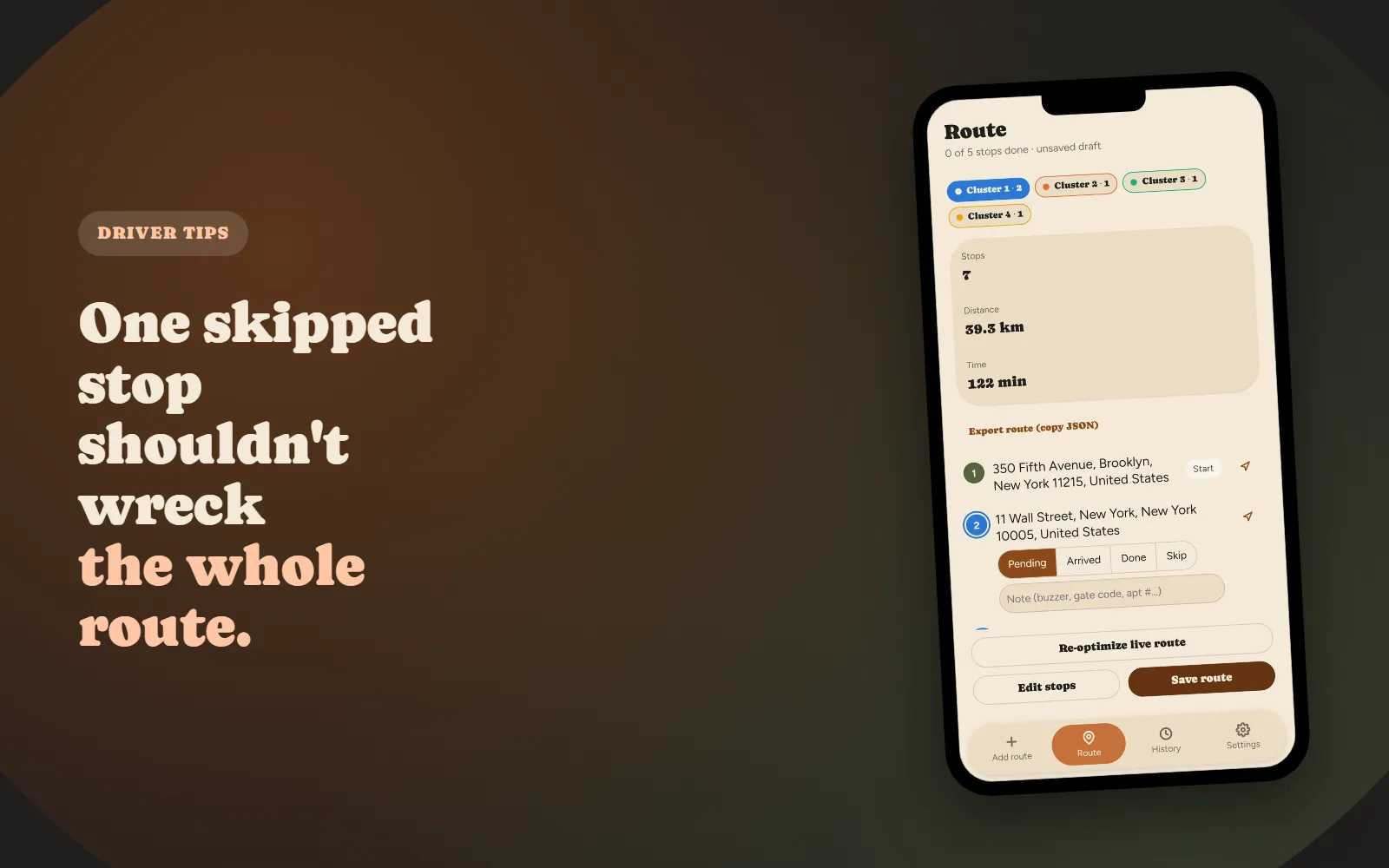
Why Your Delivery Route Falls Apart After the First Skipped Stop
Why a manually-planned route doesn't "self-heal," and what real-time re-optimization actually means.

The Complete Guide to Offline-First Sync for Delivery Apps
Why cloud-dependent save logic silently loses completed deliveries in dead zones, and the architecture that fixes it.