Most route apps are judged on their route-building screen. How fast can you enter addresses, how good is the optimization. That screen matters. It is not the one you use most.
The interaction you perform most on a shift is reopening the app between stops, dozens of times a day. It is also the one almost nobody optimizes.
This is what that looked like in Fix My Route: a default screen that was wrong for the common case, a fix that was technically correct and still felt broken, and the change that made reopening instant. The lesson applies to any route app you use or build.
The interaction nobody counts
Count your taps across a shift. You build a route once, maybe twice a day. You reopen the app every time you park, every time you finish a stop and need the next address, every time you come back from handing off to a maps app.
The working conditions make that reopen the whole product experience. The driver is operating the phone one-handed, because the other hand is on a package, a gate, or a steering wheel. They are glancing, not reading. Most interactions happen in the few seconds between a parking spot and a doorstep, often in bright enough sunlight that a glance is all the screen gets.
Under those conditions, a pause of a couple of seconds is not a minor performance detail. It is the difference between a glance and a stop. You put the package down, shield the screen, squint, and wait.
There is a second constraint that shapes everything. Drivers are regularly offline. Elevators, parking garages, and rural dead zones are a normal part of the job, not an edge case. Any part of the experience that depends on a network round-trip is a part that fails at the exact moment it is needed most.
Put those together and the priority order looks different from the one most feature lists imply. Route building has to be good. The reopen has to be invisible.
What we got wrong first
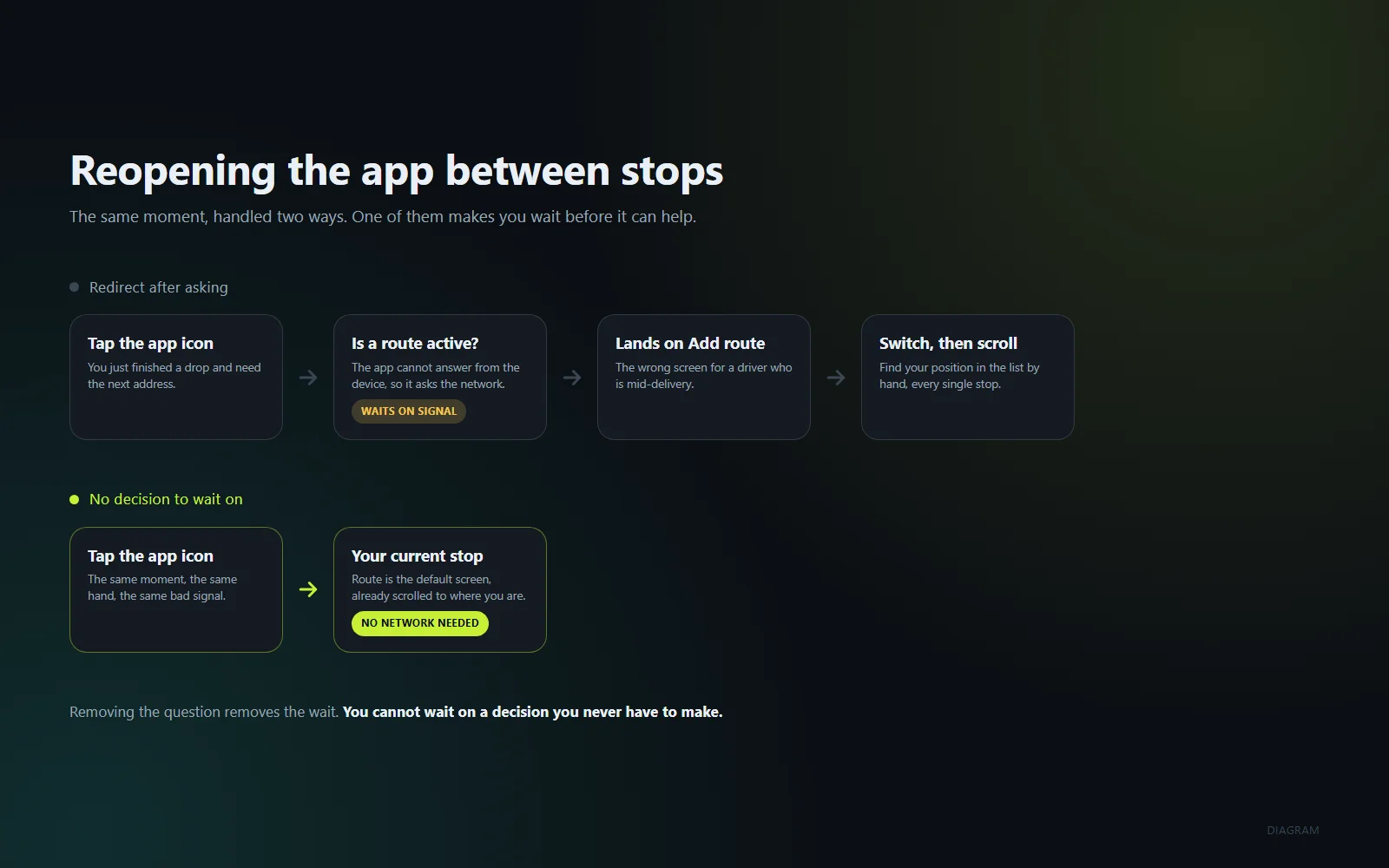
Our first version had no rule for which tab to open on. The app defaulted to the first one, which was the add-route screen.
That is harmless if you are sitting at a desk entering addresses. It is wrong if you are mid-delivery. You open the app to find out where you are going next and land on a screen for building a new route you do not need. Now you switch tabs, then scroll to find your position in the list.
Every stop, the same small tax. Nothing about it looks like a bug. The app never crashed, never showed an error, never lost data. It quietly put the wrong thing in front of you, dozens of times a shift.
That is the category of problem worth watching for in any tool you rely on: not failures, but friction that repeats.
The fix that was correct and still felt broken
The obvious fix was to redirect. If a delivery is in progress when the app opens, send the driver to the route screen. If not, leave them on add-route.
We shipped that. It worked, and it still felt slow enough that it got reported after a real delivery shift.
The reason sits underneath the redirect. Deciding whether to redirect required knowing whether a route was active, and on a cold start the app did not know that yet. It had to wait on a network round-trip before it could even decide where to send you.
The redirect was correct. The architecture underneath it was not. We had built a decision the app was forced to make on every open, and attached a network dependency to that decision.
On good signal, that is a small pause. On the signal you actually get in a parking garage, it is worse. And it happens on every single open, for the case that occurs constantly during a shift.
This is the trap worth naming. A fix can pass every test and still be the wrong fix, because the tests check whether it eventually does the right thing, not whether the common case has to wait to find out.
Make the common case the default
The better answer was to stop redirecting and change the default.
The route screen became the default outright. No check, no decision, no round-trip. If you are mid-delivery, which is the common case during a shift, the app opens exactly where you need to be, signal or no signal.
The other case did not need a redirect either. When there is no active route, the route screen shows its own empty state with a one-tap way to go to Add route. The screen tells you what to do instead of the app guessing on your behalf.
That single change removes a network call from the critical path entirely, not by making the call faster but by removing the reason to make it. You cannot wait on a decision you never have to make.
The principle generalizes well beyond route apps. If one branch of a conditional is the case that happens constantly, make that branch the default and handle the other branch in place. Optimizing the speed of a decision is the weaker move. Deleting the decision is the stronger one.
The right screen is not the same as the right stop
Landing on the route screen is not the same as landing on the right stop. A fifteen-stop route is a scrolling list, and "somewhere in the route screen" still leaves you hunting.
So the app scrolls for you. When you open it, or bring it back to the foreground, it goes straight to whichever stop is current or next. That stop is highlighted too, so one glance tells you both where you are and what is coming.
The combination matters more than either half. Auto-scroll without a correct default screen scrolls a screen you are not looking at. A correct default screen without auto-scroll puts you in the right place, at the top of it, with a scroll still to do.
Together they turn reopening into a single glance with no input at all, which is the actual target when one hand is occupied.
How to test this on any route app
Five minutes and one active route will tell you more about a route app than any feature list. You do not need to be a developer. You need a route in progress and somewhere to walk around.
- Reopen mid-route. Force-quit the app, then open it fresh. A good result: you land on your active route, positioned at the current or next stop, without tapping a tab or scrolling. A bad result: anywhere that requires a tab switch or a hunt.
- Background it and come back. Open your maps app for turn-by-turn, then switch back. A good result: instant, still positioned at the current stop, no loading state. A bad result: a spinner, a flash of the wrong screen, or a jump back to the top of the list.
- Force-quit and reopen four or five times. You are testing consistency, not whether it works once. A good result: identical behavior every time. A bad result: fast sometimes and laggy others, which usually means the app is waiting on a network call it should not depend on.
- Do all of it with no signal. Airplane mode, or somewhere with no reception, then repeat the first three. A good result: everything still works, because the app is reading local state. A bad result: it cannot decide where to put you, shows a stale or empty screen, or claims your route is missing.
The airplane-mode check is the one most people skip and the most revealing. A reopen that depends on a network call will pass on good signal and fail in a garage. Since garages are where deliveries happen, that app will demo well and disappoint on the job.
One more thing while you are there. If the app shows a status banner when signal drops, notice whether it reads as calm or as an error. Losing signal in an elevator is normal. An app that treats it as a failure is telling you it was built for a desk.
Final thoughts
The reopen is the most frequent interaction on a shift and the least optimized. If you are evaluating a route app, test it the way you will actually use it: mid-route, one-handed, on bad signal, dozens of times a day.
If you are building one, the principle is short. A fix that requires the app to decide something before it can help you is a fix that has to wait. Make the common case the default, and the decision disappears along with the wait.
Fix My Route Team
We build route-optimization software for delivery drivers and couriers, and write about the planning and engineering problems that come up running real multi-stop days.
Keep reading
The Complete Guide to Offline-First Sync for Delivery Apps
Why cloud-dependent save logic loses completed deliveries in dead zones.
Why Your Delivery Route Falls Apart After the First Skipped Stop
Why a manually-planned route doesn't "self-heal," and what real-time re-optimization actually means.